
HubSpot
- In your HubSpot account, click the settings settings icon in the top navigation bar.
- In the left sidebar menu, navigate to General.
- Click the Email tab.
- Click Connect personal email.
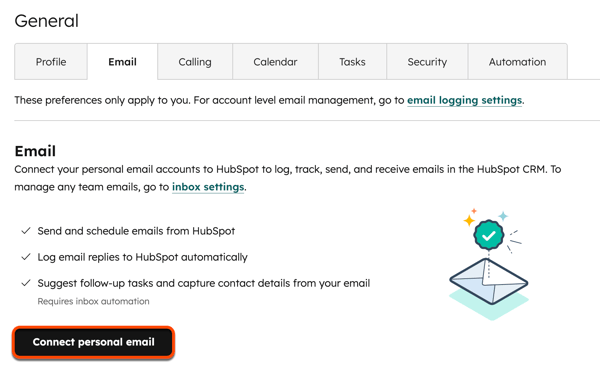
- If you want to turn on inbox automation features when you connect, in the dialog box, select the Turn on inbox automation checkbox.
- Click Connect your inbox.
- In the text field, enter your email address.
-
HubSpot will attempt to recommend which email provider you should connect with. Click Connect to [recommended provider], then continue the steps below for your specific provider to finish connecting your personal email.
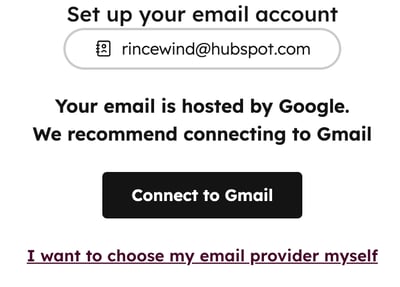
- If your email provider isn't identified, click I want to choose my email provider myself. Then, select your email provider.
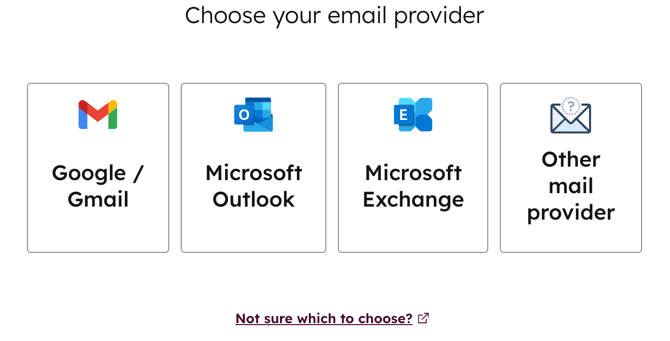
Gmail
- Read through what to expect when you connect your Gmail inbox to HubSpot, then click Continue.
- You'll be prompted to log in to your Gmail account. Enter the email address of the Google account you want to use. If you're already logged into one or more of your Gmail accounts, choose the account you want to connect.
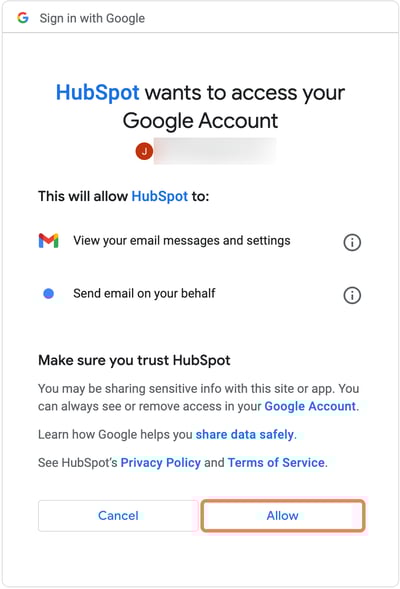
- Review the required permissions, then click Allow.
- You'll be redirected back to your settings, and a dialog box will appear to inform you that your Gmail inbox is now connected to HubSpot.